Windows explorer thumbnail cache is a database that stores miniature previews of your image, video, and document files. It allows Windows to display quick visual previews of files without having to regenerate them each time you open a folder, which speeds up browsing and improves performance.
Unfortunately sometimes Windows can periodically deletes thumbnail cache files to free up disk space, especially if your system is running low on storage, and cache files can sometimes get corrupted which causes Windows to automatically clear and regenerate them.
So in this tutorial, you will learn how to backup and restore the thumbnail cache whenever you want.
1-Find where the thumbnail cache is stored:
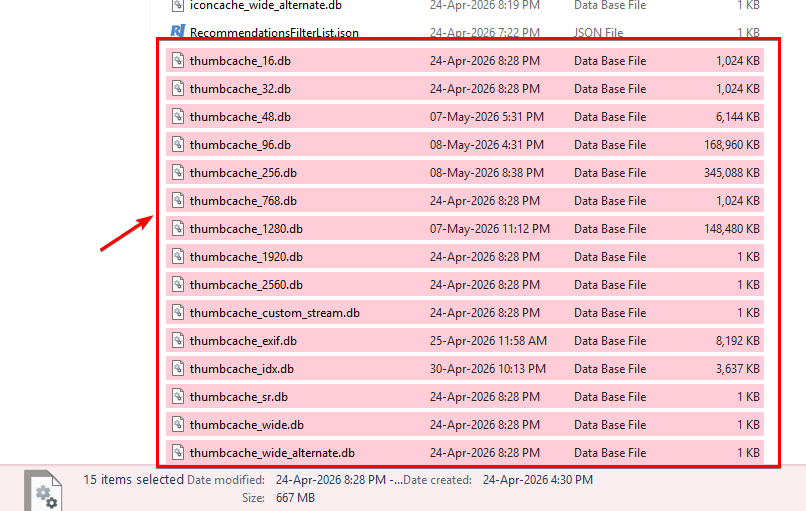
To find where the thumbnail cache is stored copy and paste this in your File Explorer address bar then press enter:
%userprofile%\AppData\Local\Microsoft\Windows\Explorer
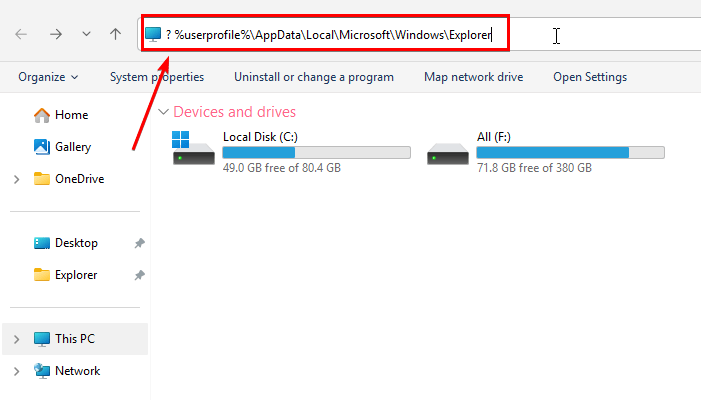
The specific database files are named thumbcache_*.db (where the asterisk represents different cache variations for different image sizes).
2-Backup Windows thumbnail cache:
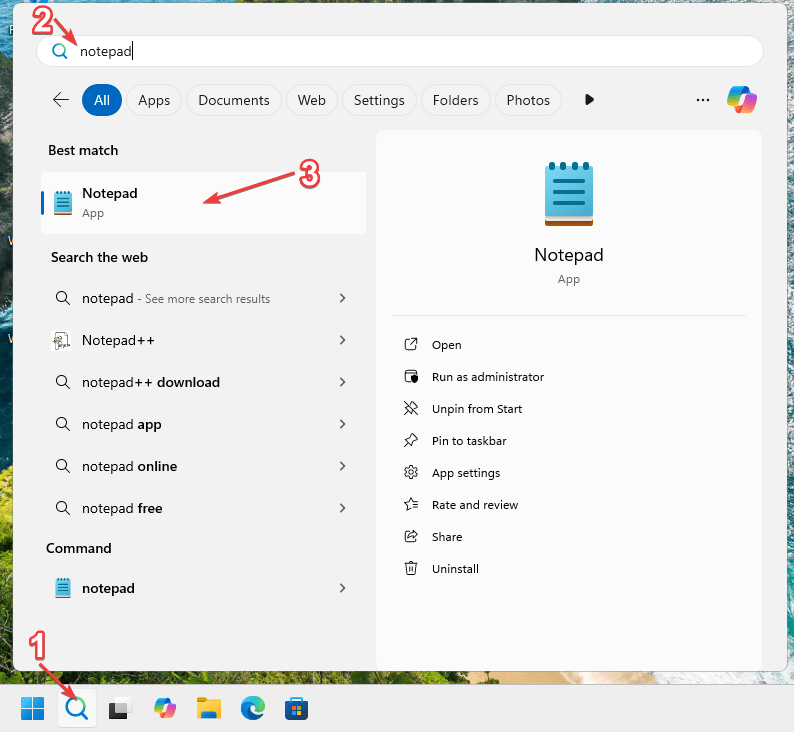
First open your notepad app (or any notepad alternative) by searching for it
Then copy and paste this code in it:
@echo off
:: Go to C:\Users\Admin\AppData\Local\Microsoft\Windows\
cd %LocalAppData%\Microsoft\Windows\

:: Remove previous "Explorer - Copy" backup (2>nul: ignore directory doesn't exist)
rd "Explorer - Copy" /s/q 2>nul

:: Create new one (echo d: copy a directory)
echo d | xcopy Explorer "Explorer - Copy" /y/s/q
Then press Ctrl + S on your keyboard simultaneously to save the notepad file, Then navigate to where you want to save the file, then next to file name type the following:
Backup Windows thumbnails.bat
Where backup Windows thumbnails is the name of your file and .bat is the file extension, you can name the file anything else, but the file extension must be .bat
Then click Save
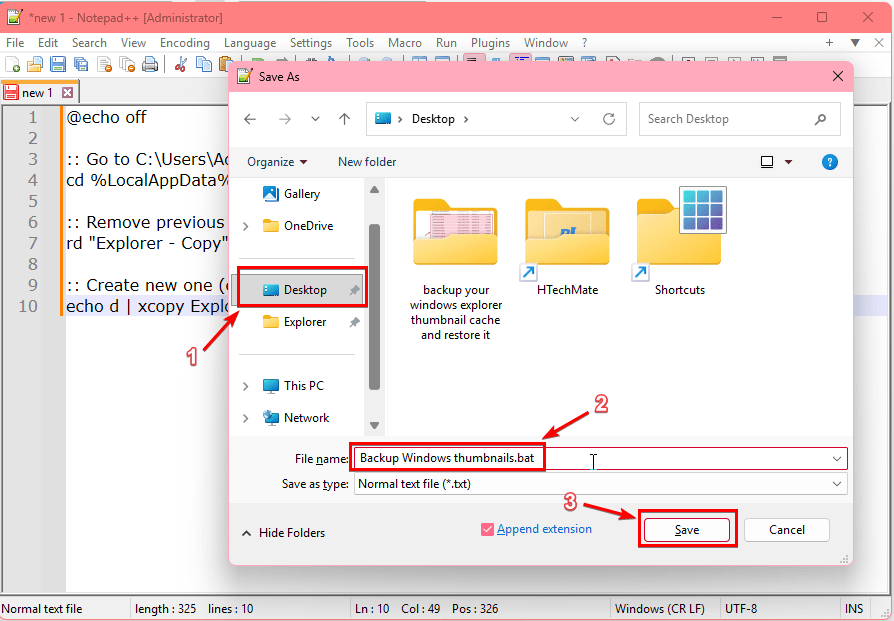
Then whenever you want to backup the thumbnail cache, just move that file Backup Windows thumbnail.bat you have just saved to the desktop of your Windows operating system, then double click on it, then wait for this window to close by itself and that’s it, congratulations you have backed up Windows explorer thumbnails.

3-Restore thumbnail cache:
To restore the thumbnail cache you have backed up, open the notepad or any notepad alternative, Then copy and paste this code in it:
@echo off

:: Go to C:\Users\Admin\AppData\Local\Microsoft\Windows\
cd %LocalAppData%\Microsoft\Windows\

:: Kill explorer.exe
taskkill /im explorer.exe /f

:: Copy thumbnails from "Explorer - Copy"
xcopy "Explorer - Copy\thumbcache_." "Explorer\" /q/y

:: Restart explorer.exe with "start" to auto-close CMD window
start explorer.exe
Then press Ctrl + S on your keyboard simultaneously, and save the file to your desktop with any name of your choice as long as it has .bat file extension at the end of it
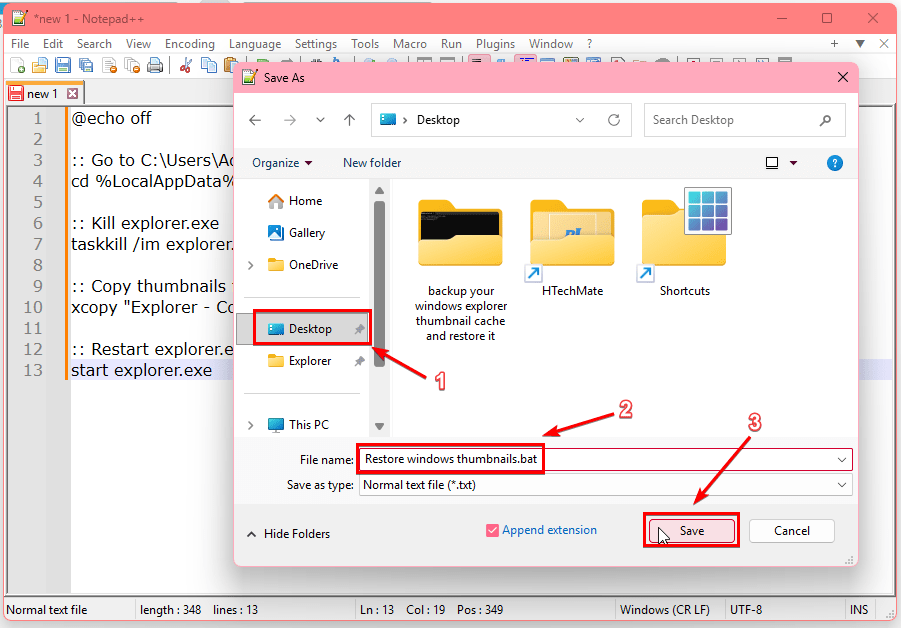
Then whenever you want to restore the Windows thumbnails you have backed up using the above method, just double click on this file to restore the thumbnails.
Notes:
1-Make sure not to accidentally delete the Explorer – Copy folder located in
%userprofile%\AppData\Local\Microsoft\Windows\
because it contains the backed up thumbnail cache.
2-make sure the back up.bat and restore.bat files you created are on your Windows desktop before you back up or restore the thumbnail cache.
3-If for whatever reason the restore Windows thumbnail cache.bat didn’t work, then clear your Windows thumbnail cache first, then try running that restore Windows thumbnail cache.bat file again.
Click here to find out how to clear up your Windows thumbnail cache.