Windows Explorer thumbnail cache is a database that stores previews of your image, video, and document files. It allows Windows to display quick visual previews of files without having to regenerate them each time you open a folder, which speeds up browsing and improves performance.
However, there are a few reasons to clear the thumbnail cache. The thumbnail cache files can sometimes get corrupted, which makes it important to clear and regenerate the thumbnail cache in order to fix it.
If you don’t clear the thumbnail cache and you work with a lot of images and videos, the thumbnail cache can grow large over time, possibly consuming gigabytes of storage on your system, and by clearing the thumbnail cache, you can free up some space.
If you are concerned about privacy, and you are not the only one using your computer, you might want to clear the thumbnail cache, as it stores images and previews of files you’ve accessed, even if you’ve deleted the original files.
So in this tutorial, you will learn how to clear up your thumbnail cache on Windows 11.
1-Clear up Windows thumbnail cache through the settings:
First open the settings by pressing “Windows key + I” simultaneously on your keyboard.
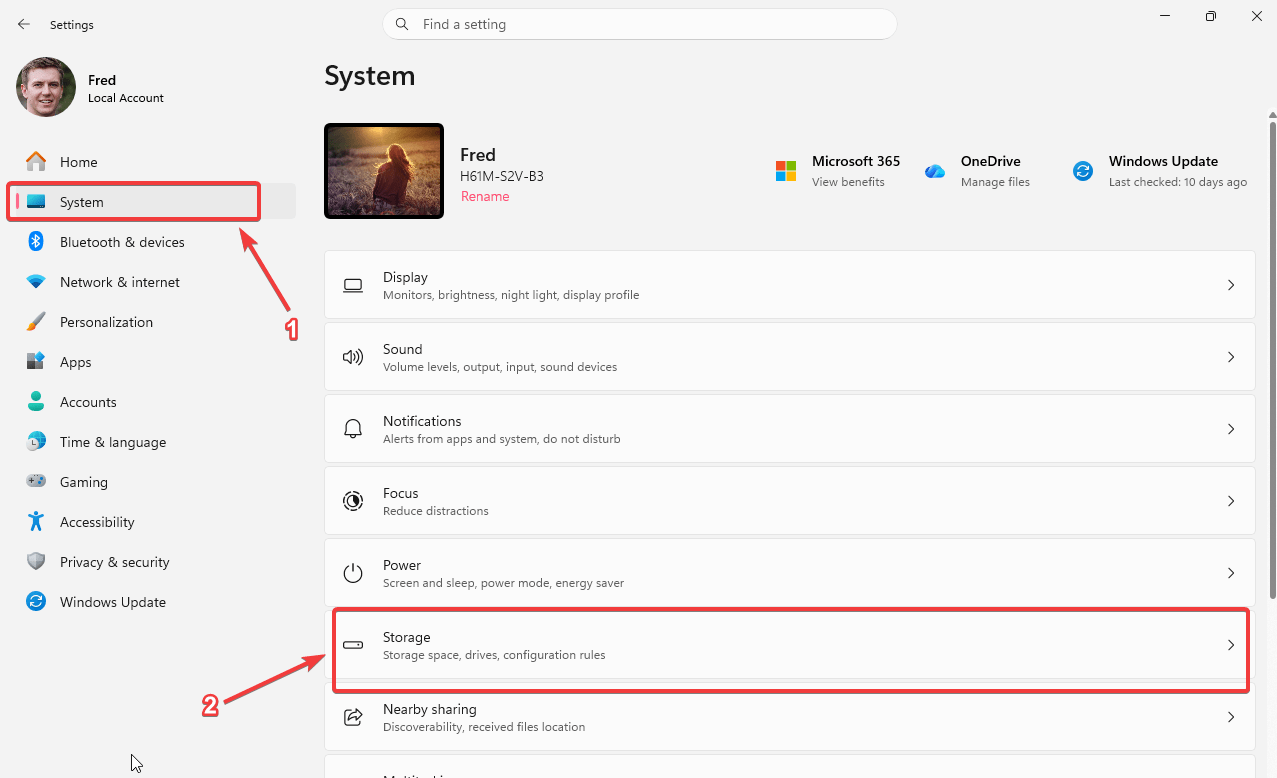
Then click on the system tab on left panel, then scroll down a little bit if needed and click on storage on the right panel.
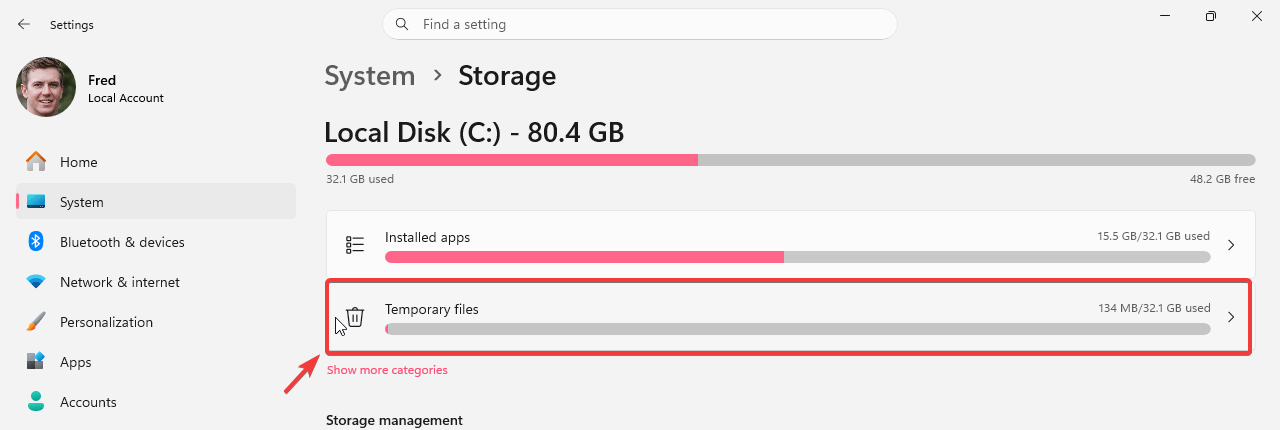
Then click on Temporary files on the right panel.
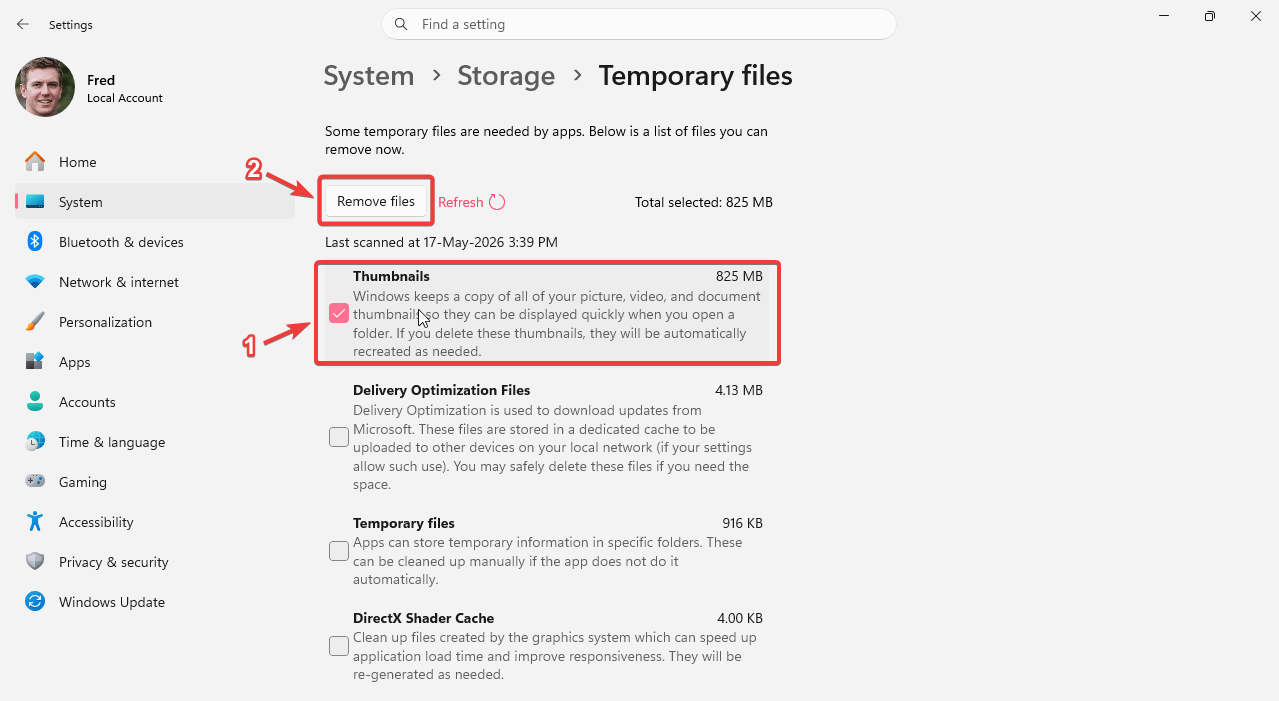
Then deselect the other options (unless you want to clear them up too), and select Thumbnails, then click on Remove files.
2-Clear up Windows thumbnail cache using a batch file:
You can also clear Windows thumbnail cache using a .bat file, to do so, follow these instructions:
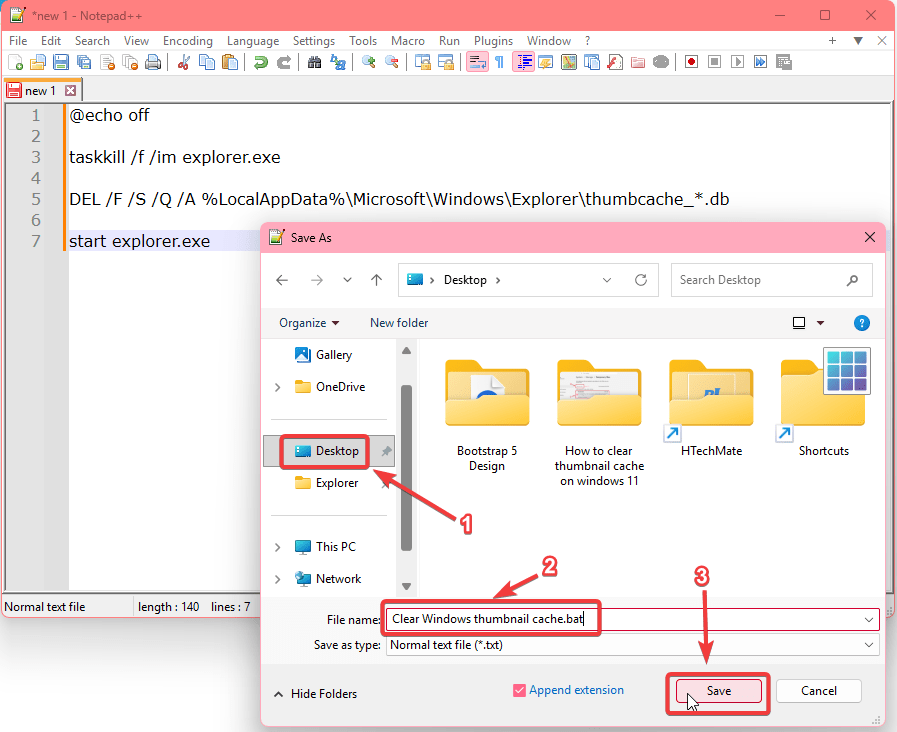
Open notepad, or any notepad alternative, and paste the following in it:
@echo off

taskkill /f /im explorer.exe

DEL /F /S /Q /A %LocalAppData%\Microsoft\Windows\Explorer\thumbcache_*.db

start explorer.exe
Then save it your windows desktop, as Clear Windows thumbnail cache.bat, or any name of your choice, as long as it has the .bat file extensions at the end of it.
Then make sure to save your work because in the following step, Windows explorer will restart, which will close all file explorer windows.
Double click on the file you have just saved, and that’s it.
Note: this method is faster and works on all Windows versions, but it requires restarting explorer.