By default, using a Microsoft account to sign-in to Windows will always require an internet connection, however by using Windows Hello sign-in options such as PIN, Fingerprint recognition, or Facial recognition, you can log in to your computer even when there is no internet connection which is especially useful if you use your laptop outdoors or in an area without internet connectivity.
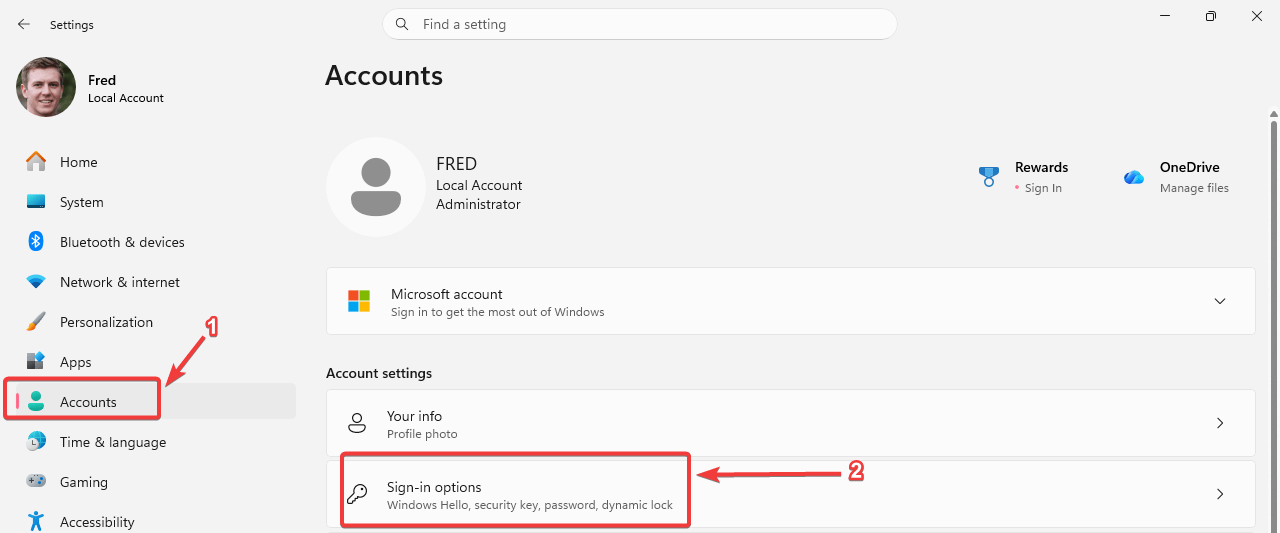
To set up a PIN, press Windows key + i simultaneously on your keyboard to open the Windows settings app, then go to Accounts and select Sign-in options.
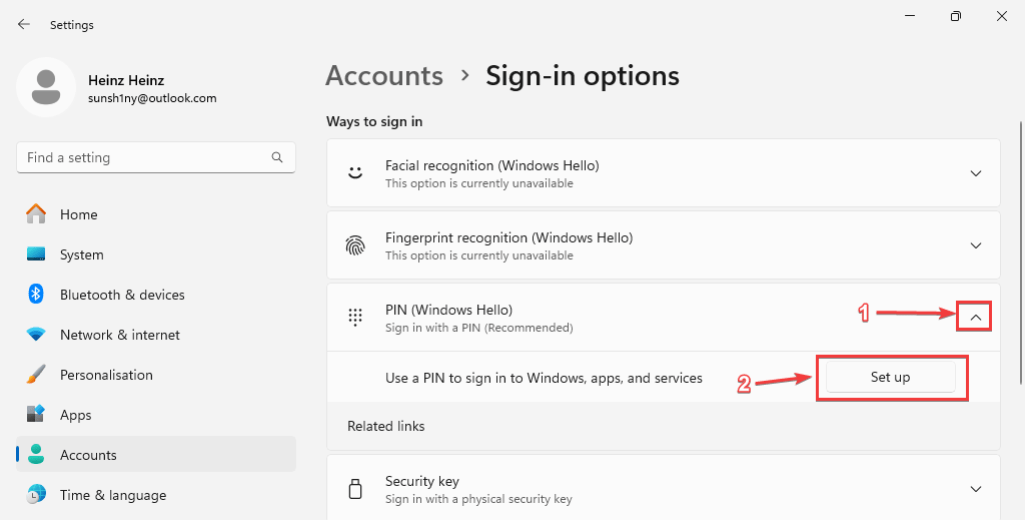
Then click on the drop down button beside PIN (Windows Hello) and choose Set up.
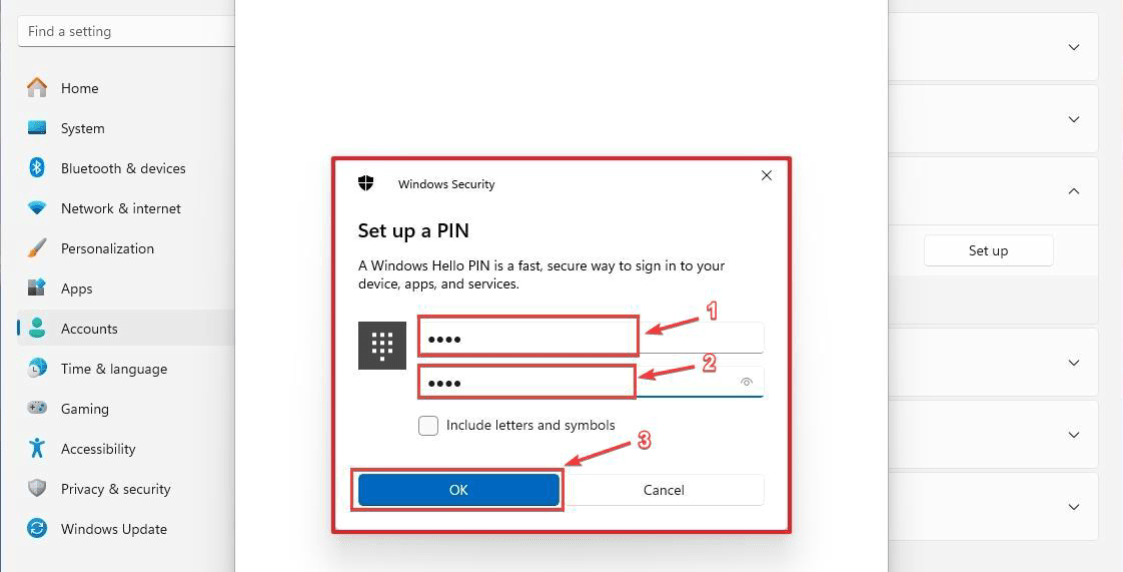
Then click Next, then enter your PIN, and enter it again in the below box then click Ok.
The PIN is normally made of numbers only, but you can click on Include letters and symbols to make the PIN more complex.
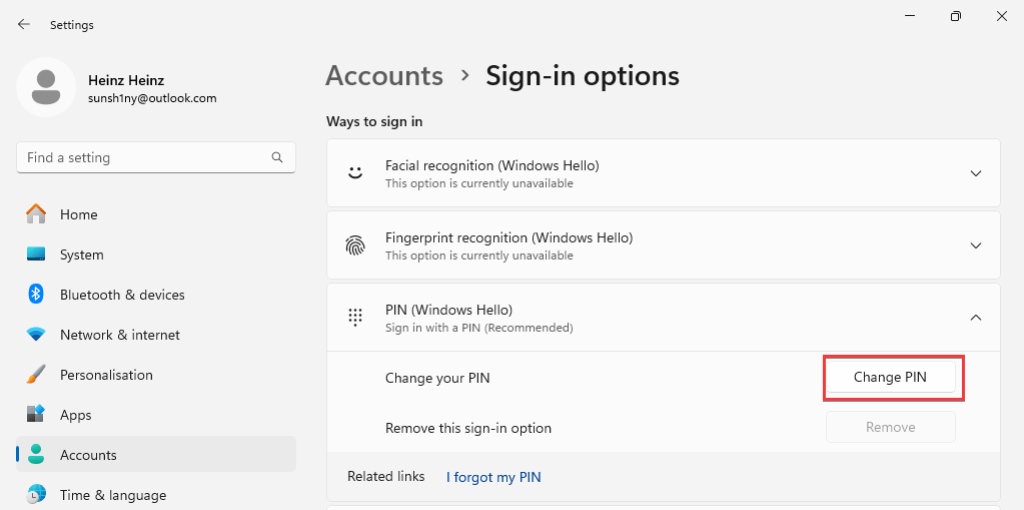
Congratulations, you have now created a PIN for your account and you can sign-in to Windows while offline. To change your pin click on Change PIN and follow the on-screen instructions.